
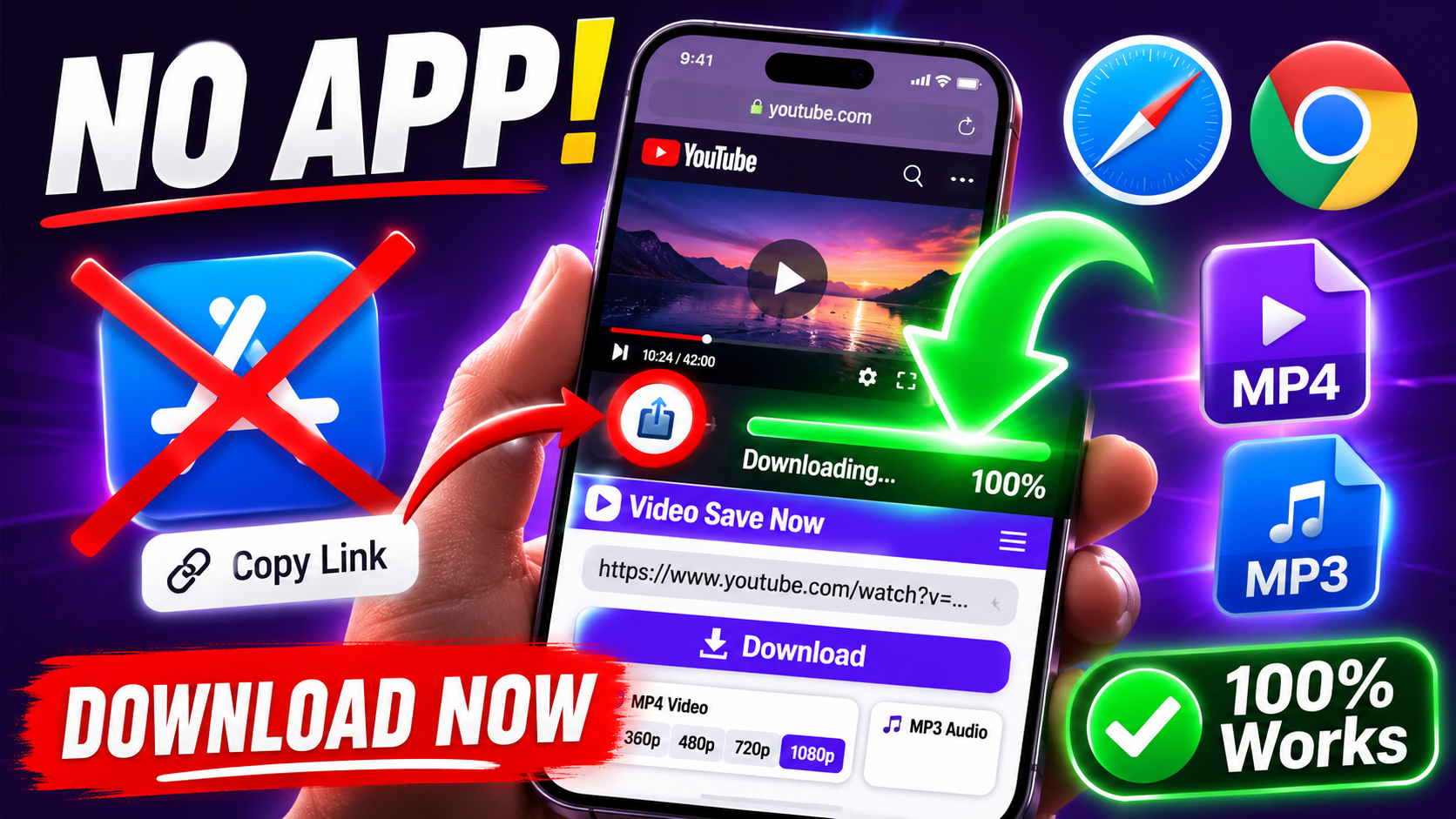
Title: How to Download YouTube Videos on iPhone Without an App (Complete Guide)
Slug: how-to-download-youtube-videos-on-iphone-without-an-app
Excerpt: Save YouTube videos straight to your iPhone in HD or MP3 — no app, no App Store, no sketchy downloads. Just paste the link and go.
Category: YouTube Downloader
Tags: YouTube, iPhone, Guide, Video Downloader, No App
SEO title: Download YouTube Videos on iPhone Without an App — Free Guide
Meta description: Learn how to download YouTube videos on iPhone without installing an app. Free, fast, HD quality, MP3 option included — no account needed.
How to Download YouTube Videos on iPhone Without an App (Complete Guide)
If you've ever tried to save a YouTube video on your iPhone, you already know the frustration. There's no built-in "download" button sitting next to the share icon, and the App Store is packed with apps that either don't work, bury the real download button behind five layers of ads, or ask for permissions you'd never normally hand over to a video tool. Some of them disappear from the App Store entirely a few months after you install them, leaving you with a broken app and no explanation.
Here's the good news: you don't need an app at all. A browser-based tool handles the entire job in under a minute, works the same whether you're on Safari, Chrome, or any other iPhone browser, and never asks you to install anything on your phone. This guide walks through exactly how that works, why it's the better option compared to almost everything else people try, and how to deal with the handful of things that can go wrong along the way.
Why There's No Native "Download" Button on YouTube for iPhone
It helps to understand why this problem exists in the first place, because it explains why so many of the "solutions" floating around don't actually work well.
YouTube does technically offer a download feature — but only inside YouTube Premium, and even then, the video is only saved for offline playback inside the YouTube app itself. You can't pull that file out and put it in your camera roll, send it to someone over text, or use a clip of it in an edit. It's locked to the app, tied to your Premium subscription, and disappears if your subscription lapses. For most people, that's not actually what "downloading a video" means — they want an actual file they own and control.
Apple, on its end, deliberately keeps most third-party downloader apps out of the App Store. Apps that let you save YouTube videos directly often conflict with YouTube's terms of service around content redistribution, and Apple tends to reject or later pull these apps once Google (which owns YouTube) flags them. That's why the "YouTube downloader" apps you do find in the App Store are usually one of three things: disguised utility apps that don't actually do what they claim, apps from small overseas developers that get removed within weeks, or apps that technically work but bombard you with ads and in-app purchases before letting you download anything.
A web-based downloader sidesteps this problem completely. Because it's not an app — it's just a website — it doesn't need App Store approval, doesn't need to be "installed," and can't be pulled from a store overnight. It runs entirely in your browser: you paste a link, a server does the actual video processing, and you're handed a finished file. Nothing sits on your phone taking up space until you actually choose to save something.
Step-by-Step: Downloading a YouTube Video on iPhone
Here's the full process, start to finish.
Step 1: Open the video you want to save. You can do this either in the YouTube app itself or through Safari — both work, since you're only grabbing the link, not interacting with the app's playback system.
Step 2: Copy the video link. Tap the Share icon underneath the video (it looks like an arrow pointing out of a box). A share sheet will pop up with a row of options — tap "Copy Link." This copies the full YouTube URL to your clipboard.
Step 3: Open Safari and go to Video Save Now. You'll land on a simple page with one clear input box.
Step 4: Paste the link into the box. Tap into the field, then tap "Paste" when the option pops up, or long-press and select Paste from the menu. The link should show up in full, starting with https://www.youtube.com/watch?v= followed by a string of letters and numbers.
Step 5: Choose your format and quality. You'll typically see several options: MP4 video in various resolutions (360p, 480p, 720p, 1080p, and sometimes 4K if the original video supports it), plus an MP3-only option if you just want the audio.
Step 6: Tap download. The site processes the video and gives you a file to save. Depending on your Safari settings, it either lands directly in your Files app or prompts you to choose where to save it (Files, or in some cases directly into Photos if it's been converted appropriately).
Step 7: Access it offline anytime. Once it's saved, you don't need wifi or data to watch it — it plays like any other video already on your phone, whether that's through the Files app, a video player app, or wherever you chose to store it.
The entire process, once you've done it once, takes under 30 seconds for most videos.
What Quality Should You Actually Pick?
This trips people up more than it should, so it's worth breaking down.
1080p MP4 is the sweet spot for most situations. It looks sharp and clear on an iPhone screen — even the largest iPhone display doesn't come close to needing anything higher than 1080p to look genuinely great — while keeping the file size reasonable. A 10-minute video at 1080p typically lands somewhere in the 150-300MB range, depending on how much motion and detail is in the footage.
4K, if it's available, is worth choosing only in specific situations: if you're planning to AirPlay or cast the video to a 4K TV, or if you're saving footage you plan to edit and want maximum detail to work with. For everyday phone viewing, 4K is overkill — you won't notice a visual difference on the device you're watching it on, but you will notice the file eating through your storage far faster.
720p is the better choice if storage space is tight, or if you're downloading a lot of videos and want to keep more of them without running out of room. It still looks perfectly good on a phone screen; the drop from 1080p to 720p is far less noticeable than people expect.
MP3 (audio only) is the right call anytime the video itself doesn't matter — podcasts, interviews, lectures, music, or any video where you're really just there for the sound. MP3 files are a fraction of the size of even a low-quality video file, which means you can save dozens of them in the space one video would take.
Formats Explained: MP4 vs. Other Options
Most tools default to MP4 for video downloads, and there's a good reason for that: MP4 is the most universally compatible video format that exists. It plays natively on iPhone, Android, Windows, Mac, smart TVs, game consoles — essentially everything. Some tools offer alternatives like WebM or MKV, which can technically hold slightly better quality at the same file size, but they're far less universally supported, especially on iOS. Unless you have a specific reason to want one of those formats, MP4 is almost always the right default.
For audio, MP3 remains the standard for the same reason — universal compatibility. Some tools offer higher-fidelity formats like FLAC or WAV, but those files are significantly larger for a quality difference most people can't actually hear through phone speakers or standard earbuds. MP3 at a decent bitrate (192kbps or higher) is indistinguishable from the source for the vast majority of listening situations.
Downloading YouTube Playlists and Multiple Videos
If you've got a whole playlist you want offline — a workout series, a course, an album uploaded as individual tracks — downloading videos one at a time gets tedious fast. Some tools support pasting a playlist link directly rather than individual video links, which processes every video in the playlist in sequence rather than making you repeat the copy-paste cycle for each one. If the tool you're using doesn't support playlist links directly, the fallback is simply repeating the single-video process for each video in the list — slower, but it gets the same result.
Common Problems and How to Fix Them
"The link didn't work" or "invalid URL" error. This is almost always one of two things: either the link got cut off during copying (double-check it starts with https:// and includes the full string after watch?v=), or you copied a shortened link from somewhere like an Instagram DM or a text message, which sometimes strips part of the URL. The fix is simple — go back to the YouTube app or site directly and copy the link fresh from there rather than from wherever it was shared to you.
The video downloaded but won't play. This usually points to an interrupted download — most often caused by a weak wifi signal or the app switching away mid-process (like a phone call coming in). Delete the broken file and run the download again on a stable connection.
Only the audio option is showing, not video. Some videos have restrictions set by the creator or by YouTube itself — age restrictions, region locks, or "embedding disabled" settings — that can limit which formats a downloader is able to pull. Try a different, unrestricted video to confirm the tool itself is working properly; if it is, the specific video you're trying to save likely has one of these restrictions in place.
Download is very slow. Longer videos and higher resolutions naturally take more time to process — a 4K, hour-long video is going to take noticeably longer than a 3-minute clip at 480p. If a normally quick download is unusually slow, it's worth checking your own connection speed first, since server-side processing is rarely the bottleneck for typical videos.
The file saved somewhere I can't find. On iPhone, this usually comes down to Safari's download settings. By default, downloads often land in the Files app under "Downloads" or "iCloud Drive," depending on how your phone is configured. If you can't find a file after downloading, open the Files app and check both the "On My iPhone" and "iCloud Drive" sections under Downloads.
"This video is unavailable" even though it plays fine in the app. Occasionally a video that plays perfectly well in the YouTube app has restrictions specifically around third-party access to its underlying video file — this is more common with music videos from major labels, movie trailers from studios, and some live-streamed content. There's not usually a workaround for this particular situation; it's simply a restriction from the rights holder.
Downloading on iPhone vs. Other Devices
The exact same web-based process works on Android, on a Windows PC, and on a Mac — the tool itself doesn't care what device you're using, since it's all happening through a browser rather than through an installed app. The only real differences between devices come down to where the downloaded file ends up:
On iPhone, files typically land in the Files app, sometimes with a prompt asking where to save.
On Android, downloads generally go straight to a "Downloads" folder that's easily found through any file manager app.
On Mac or Windows, the file goes to your browser's default download folder, which you can usually change in your browser's settings if you'd rather it save somewhere specific.
If you're switching between devices — say, downloading on your laptop and wanting the file on your phone too — the easiest route is usually AirDrop (between Apple devices), a cloud storage app like Google Drive or Dropbox, or simply repeating the download process on the second device directly, since it only takes a few seconds either way.
Downloading Age-Restricted or Region-Locked Videos
Age-restricted videos on YouTube require you to be signed in and verified as being over 18 to view them at all — that restriction exists at the platform level and generally can't be bypassed by a downloader tool, since the tool needs to be able to access the video the same way a regular viewer would. If a video is age-restricted and you can view it normally while logged into YouTube, some tools are still able to process the download; if you can't view it at all without being logged in, a downloader generally won't be able to either.
Region-locked videos — content that's only available in certain countries due to licensing — behave similarly. If you can't watch the video normally from your location, a downloader typically can't retrieve it either, since it's working with the same publicly accessible video stream that a regular viewer would see.
Is Downloading YouTube Videos Actually Legal?
This is the question most people have somewhere in the back of their mind, and the honest answer is: it depends on what you do with the video afterward, not the act of downloading itself.
Downloading a YouTube video for personal, offline use — watching something on a flight with no wifi, saving a recipe video to follow along with later, keeping a workout routine you don't want to lose if the creator ever takes it down — is normal, everyday behavior that falls squarely within typical personal use. Millions of people do this regularly for entirely mundane reasons: saving content before a trip, building a personal library of tutorials, or just wanting a backup of something they enjoy watching.
What actually crosses into legally and ethically murky territory is what you do after downloading: re-uploading someone else's video to another platform without permission, monetizing content that isn't yours, or distributing copies of the video publicly in a way that competes with or replaces the original creator's own distribution. YouTube's terms of service technically prohibit downloading videos through third-party tools in most cases, but in practice, enforcement is almost entirely focused on large-scale redistribution and commercial use, not an individual saving a single video for their own personal, offline viewing.
If you're a content creator yourself, there's also the question of using clips from other creators' videos in your own work. Fair use principles (which vary somewhat by country) generally allow short excerpts used for commentary, criticism, or education, but reposting whole videos or substantial portions of someone else's content as your own is where you'd run into real problems — both from a platform enforcement standpoint and from the original creator, who has every right to file a copyright claim.
Privacy and Safety Considerations
One legitimate concern people have with any online tool that processes video links is what happens to their data. A handful of things are worth knowing here: a browser-based downloader that doesn't require an account or login is generally safer from a privacy standpoint than an app that asks for extensive permissions (contacts, photos, microphone access) that have nothing to do with actually downloading a video. If a tool is asking for permissions unrelated to its core function, that's worth being cautious about.
It's also worth sticking to tools that don't bombard you with the kind of deceptive "fake download button" pattern that's become common in this space — where the actual download link is buried beneath several ad banners disguised to look like download buttons. Beyond being annoying, these patterns are often paired with the exact kind of adware and malicious redirect behavior that gets legitimate antivirus software flagging certain well-known downloader sites entirely.
Alternatives People Try (and Why They Usually Fall Short)
Screen recording. iPhone's built-in screen recording feature seems like an obvious workaround, but it comes with real downsides: you capture your entire screen, not just the video, meaning you end up with YouTube's interface, the progress bar, and any notification banners that happen to slide in during recording. Quality also takes a hit, since you're recording a video that's already been compressed once, adding a second layer of compression on top.
Downloader apps from the App Store. As covered earlier, these are inconsistent at best. Many either don't work, get removed shortly after you install them, or hide the actual download behind layers of ads and fake buttons designed to get you to click something else entirely.
Browser extensions. These technically work on desktop browsers in some cases, but iPhone's version of Safari doesn't support the same extension ecosystem as desktop browsers, which rules this option out for most mobile users entirely.
Jailbreaking your phone. Some older guides suggest jailbreaking to install unauthorized downloader apps directly. This isn't necessary anymore given how well browser-based tools work, and it comes with real security and warranty risks that far outweigh the convenience.
Downloading Videos with Subtitles or Captions
If you're saving a video in a language you're learning, or content where captions matter — a lecture, a tutorial with on-screen text, an interview — it's worth knowing that subtitles and the video itself are usually handled separately. Some tools offer a subtitle file alongside the video download, typically as a separate .srt file that a video player can load alongside the MP4. If subtitles aren't offered as a direct option, another approach is choosing a version of the video that already has "burned-in" captions if the original creator included them directly in the footage rather than as a toggle-able overlay — in that case, the captions are part of the video itself and download automatically with no extra step needed.
For most personal use — rewatching something you've already seen with sound, or a video where subtitles aren't essential to understanding it — this isn't something you need to think about at all. It only becomes relevant for language learners, hearing-impaired viewers, or anyone using video specifically to study on-screen text.
Frequently Asked Questions
Can I download YouTube Shorts the same way? Yes — the process is identical. Copy the Shorts link the same way you'd copy a regular video link, paste it into the same tool, and download.
Will downloading use a lot of my mobile data? Yes, if you're not on wifi. Video files, especially at higher resolutions, are large enough that downloading several over cellular data can add up quickly. It's worth downloading on wifi when you can, especially for anything in 1080p or higher.
Can I download a whole YouTube channel at once? Most tools work on a per-video or per-playlist basis rather than an entire channel in one action. For a whole channel's worth of content, you'd typically need to go through each playlist or video individually.
Does the video quality on my download match what I saw while streaming? It should, as long as you select a matching resolution. If a video was uploaded in 1080p and you choose 1080p as your download quality, you're getting the same quality you'd see streaming it normally.
What happens if a video gets deleted after I've already downloaded it? Once you've saved the file to your device, it's yours to keep regardless of what happens to the original on YouTube — deletion, takedown, or the creator's account disappearing entirely doesn't affect a copy you've already downloaded.
Do I need to create an account to use a tool like this? No — the entire appeal of a straightforward web-based downloader is that it works without requiring sign-up, login, or any personal information beyond the video link itself.
Can I download a video that's currently livestreaming? Not while it's actively live — you'll generally need to wait until the stream ends and YouTube finishes processing it into a regular video, which usually happens automatically within a few minutes of the stream ending.
Is there a limit to how long a video can be? Most tools can handle videos of any reasonable length, from a 30-second Short up to multi-hour lectures or streams, though very long videos naturally take longer to process before the download is ready.
Can I rename the downloaded file? Yes — once it's saved to your Files app, you can rename it just like any other file on your phone, which is worth doing if you're saving several videos and want to keep track of what's what rather than sorting through a list of generic filenames.
What happens if I download the same video twice? Nothing problematic — you'll just end up with two copies of the same file. It's worth checking your Files app occasionally if you download often, since duplicate files are an easy way to lose track of storage space unnecessarily.
Why People Actually Download YouTube Videos
It's worth stepping back and looking at the real reasons people end up needing this, because the use case shapes which settings actually matter to you.
Travel and commutes. Flights, long train rides, and road trips through areas with spotty signal are probably the single biggest reason people download videos in the first place. Nobody wants to stare at a buffering wheel forty minutes into a flight because the in-flight wifi is either nonexistent or too slow to stream anything reliably. A handful of downloaded videos — a couple of documentaries, a few episodes of something, a playlist of music videos — turns a boring flight into something bearable.
Spotty or expensive data plans. Not everyone has an unlimited data plan, and streaming video is one of the fastest ways to burn through a data cap. Downloading a video once on wifi and watching it later, as many times as you want, without touching your data allowance at all, is a straightforward way to avoid overage charges.
Content that might disappear. Creators delete videos, take down channels, get banned, or simply go private. Livestream recordings especially tend to get taken down after a period of time. If there's something you genuinely care about keeping — a tutorial that taught you something valuable, a family member's old video, a performance you don't want to lose access to — downloading it locks in a copy regardless of what happens to the original.
Reference material for work or study. Students save lecture recordings to review before exams. Professionals save tutorials relevant to their job to rewatch without needing to search for the same video twice. Musicians save cover versions or tutorials to study specific techniques frame by frame, which is much easier with a downloaded file you can scrub through freely than with a stream that might buffer or throttle quality depending on your connection at the time.
Building a personal media library. Some people simply prefer having a local collection of videos they enjoy, the same way people used to keep DVD collections — not because streaming doesn't exist, but because there's something appealing about actually owning a copy of content you value, free from the platform ever removing it, changing it, or gating it behind a subscription later.
Managing Storage: How Many Videos Can You Realistically Keep?
Video files add up fast, and iPhones — especially the base storage models — fill up quicker than people expect. Here's a rough sense of what to expect:
A typical 10-minute video at 1080p lands somewhere around 150-300MB, depending on how much motion is in the footage (fast-paced content with a lot of movement compresses less efficiently than something static like a lecture with a mostly still camera). At 720p, that same video drops to roughly 80-150MB. At 4K, expect 500MB to over a gigabyte for the same 10 minutes.
If you're working with a 64GB or 128GB iPhone and also keeping photos, apps, and everything else on it, it's worth being deliberate about which quality you choose rather than defaulting to the highest option every time. A simple habit that helps: download in 1080p for anything you'll watch once or twice and then delete, and reserve 4K only for videos you genuinely want to keep long-term or plan to watch on a bigger screen.
It's also worth periodically going through your Files app and clearing out videos you've already watched and don't need anymore — the same way you'd clean out old photos. Since a downloaded video isn't tied to any subscription or account, there's no downside to deleting it and re-downloading it later if you ever want it again.
Editing Downloaded Videos
Once you've got a video saved as an actual file rather than something locked inside an app, you open up options that streaming never gives you. You can trim a video down to just the clip you want using the iPhone's built-in Photos editor once you import the file. You can pull a single frame out as a still image. You can combine a clip with other footage in apps like iMovie or CapCut. None of this is possible with a video that only exists as a stream — having the actual file is what makes any of it an option in the first place.
If your goal is editing rather than just offline viewing, downloading in the highest quality available is worth the extra storage space, since any editing or cropping you do afterward will only reduce quality further — starting from the best possible source file gives you the most room to work with.
Downloading Videos for Accessibility Needs
There's a less-discussed but genuinely important use case here: accessibility. Some people rely on downloaded videos specifically because their assistive technology — screen readers, custom playback speed controls, or specialized captioning tools — works more reliably with a local file than with an embedded video player that wasn't necessarily built with every accessibility tool in mind. Having a raw MP4 file to work with in a dedicated media player app can sometimes provide a smoother experience than fighting with a web player's more limited accessibility controls.
A Quick Comparison: Download Methods Side by Side
Method Works on iPhone Quality Watermark-free Requires Install Browser-based tool (like Video Save Now) Yes Original quality, multiple resolutions Yes No YouTube Premium offline mode Yes Good, but locked inside app Yes Requires subscription Third-party App Store apps Inconsistent Varies wildly Often not Yes Screen recording Yes Reduced (double-compressed) No (captures UI) No, but built-in feature Browser extensions No (iOS Safari limitation) N/A N/A N/A
Laid out this way, it's easier to see why a browser-based tool tends to be the most practical option for most people most of the time — it's the only approach that combines full quality, no watermark or UI capture, and zero installation, all at once.
Batch Downloading: Saving Time on Multiple Videos
If you regularly save more than the occasional single video — say, you're building out a training library, saving an entire course, or archiving a channel you follow closely — it's worth developing a simple system rather than repeating the same six steps from scratch every time. A practical approach: open all the videos you want in separate browser tabs first, copy each link into a notes app as you go, and then work through the downloader tool pasting one link after another in sequence. This front-loads the "finding and copying" part of the process so the actual downloading becomes a quick, repetitive task rather than something that requires switching back and forth between apps repeatedly.
What to Do If You're Downloading Regularly
If saving YouTube videos becomes a regular habit rather than an occasional need, it's worth bookmarking Video Save Now directly on your iPhone's home screen. Safari lets you add any website to your home screen as an icon that opens like an app would (tap the Share icon while on the site, then "Add to Home Screen"), which gives you a one-tap shortcut without needing an actual app installed. This is a genuinely useful middle ground — you get app-like convenience without any of the App Store risks or storage footprint that comes with an actual installed app.
You don't need to dig through the App Store hoping to find a downloader app that actually works, and you definitely don't need to screen record around YouTube's interface and settle for lower quality. A quick copy-paste into Video Save Now gets you a clean MP4 or MP3 file in seconds, straight from Safari, with no account required and no app taking up space on your phone. Once you've done it once, it becomes the obvious go-to anytime you want to save something for offline viewing.